

There's a moment in every Copilot Studio ALM journey where the solution imports cleanly, the agent opens without errors, and then someone asks it a question - and gets nothing back. The knowledge source is there in name, but the agent can't retrieve anything from it.
If you've used the upload method to bring SharePoint content into your agent - the one that syncs files into Dataverse and builds semantic indexes and vector embeddings behind the scenes - this will look familiar. The agent arrives in the target environment, but the knowledge processing that makes retrieval actually work doesn't come with it.
This isn't a mystery bug. Microsoft's own documentation is clear about it: "Application Lifecycle Management (ALM) isn't supported for this feature. Importing agents doesn't result in automated knowledge source processing."
That's the official line. But there's a practical workaround that makes it work - and it comes down to understanding what's actually happening under the hood.
What the upload method creates in Dataverse
When you add SharePoint files as a knowledge source using the upload method - selecting SharePoint from the "Upload files" section, not the connector section - Copilot Studio doesn't just store a URL reference. It copies the files into Dataverse, chunks them into smaller pieces, and creates semantic indexes and vector embeddings for each document. Those indexes are what the agent searches at runtime to find relevant content and generate grounded answers.
This is the same infrastructure Microsoft uses across Copilot Studio's unstructured data sources: files get ingested, indexed, and stored as Dataverse records. It's a fully managed RAG pipeline - chunking, vectorisation, and retrieval - without needing to build anything in Azure yourself.
The important detail: this indexing process creates Dataverse components. Tables, records, search configuration. These are real solution-aware objects in your environment.
Why it breaks on managed solution import
When you export a managed solution containing your agent and import it into a target environment, the agent definition travels - topics, system prompt, entity configuration, all of it. But the Dataverse search connector that powers the knowledge retrieval, and the semantic index it depends on, don't automatically recreate themselves.
In a managed environment, the solution can't create new Dataverse search infrastructure on import. The indexing pipeline that ran in your dev environment - the one that chunked your documents and built vector embeddings - doesn't re-trigger in the target. The knowledge source appears in the agent's configuration, but there's no index behind it. No index means no retrieval, and no retrieval means no answers.
This is why your agent goes quiet. It's not that the knowledge source is missing - it's that the search infrastructure underneath it didn't make the journey.
The fix: make the knowledge source a required component
The workaround is straightforward, and it's the same pattern you'd use for any dependent component in a Power Platform solution: you tell the solution to include the knowledge source and its associated Dataverse objects explicitly.
In your dev environment, open the solution that contains your agent. Right-click the agent, select Advanced, then Add Required Objects. Copilot Studio will inspect the agent and pull in all dependent components - including the knowledge source configuration, the Dataverse search connector, and the index records for each document.
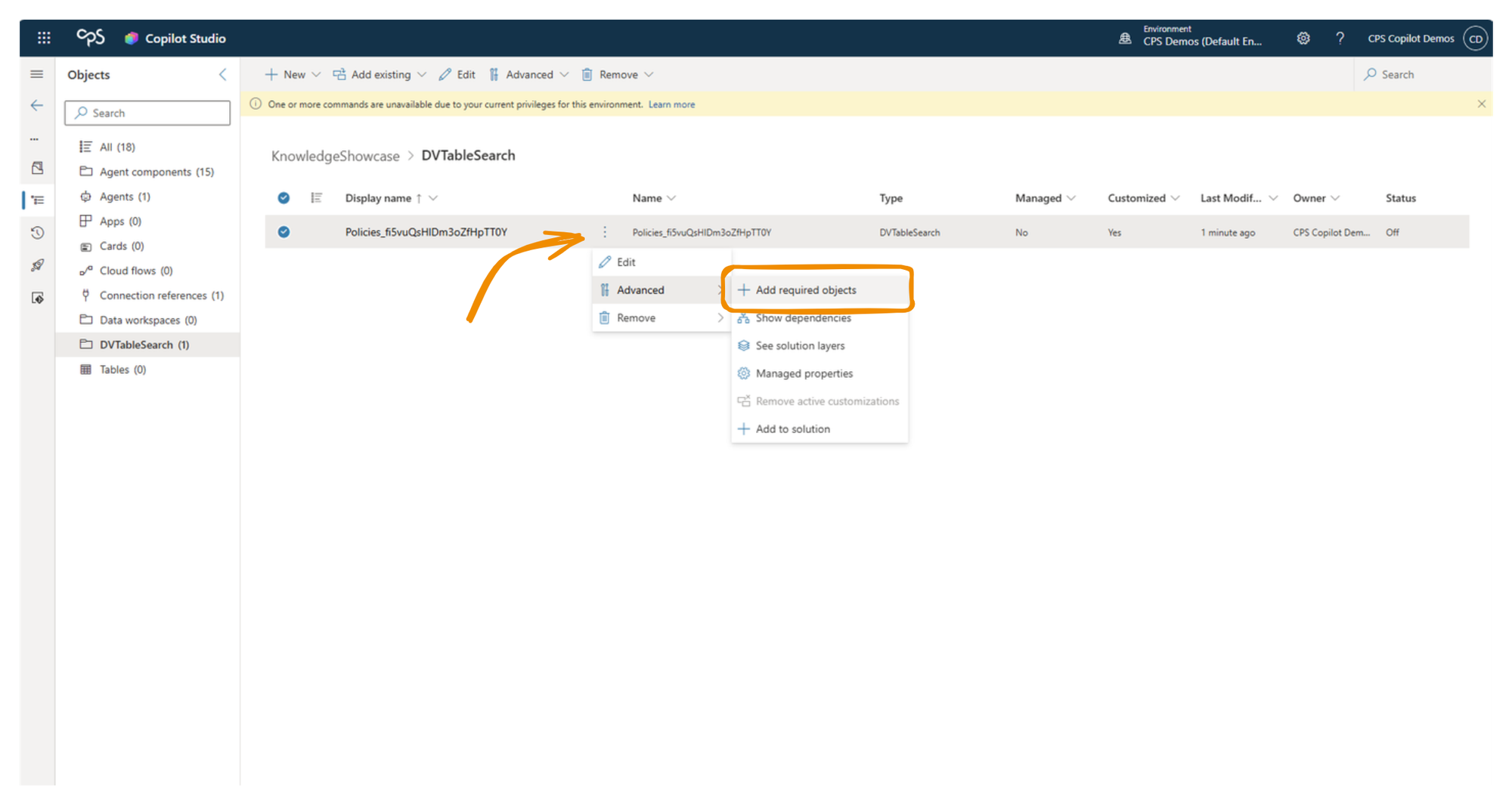
Once you've done this, open the solution's object list. You'll see the Dataverse components that were created during the knowledge ingestion process - the tables, the search connector configuration, and critically, an item for each document in your SharePoint source that was indexed. These are the semantic index records. When they're in the solution, they travel with it on export and import.
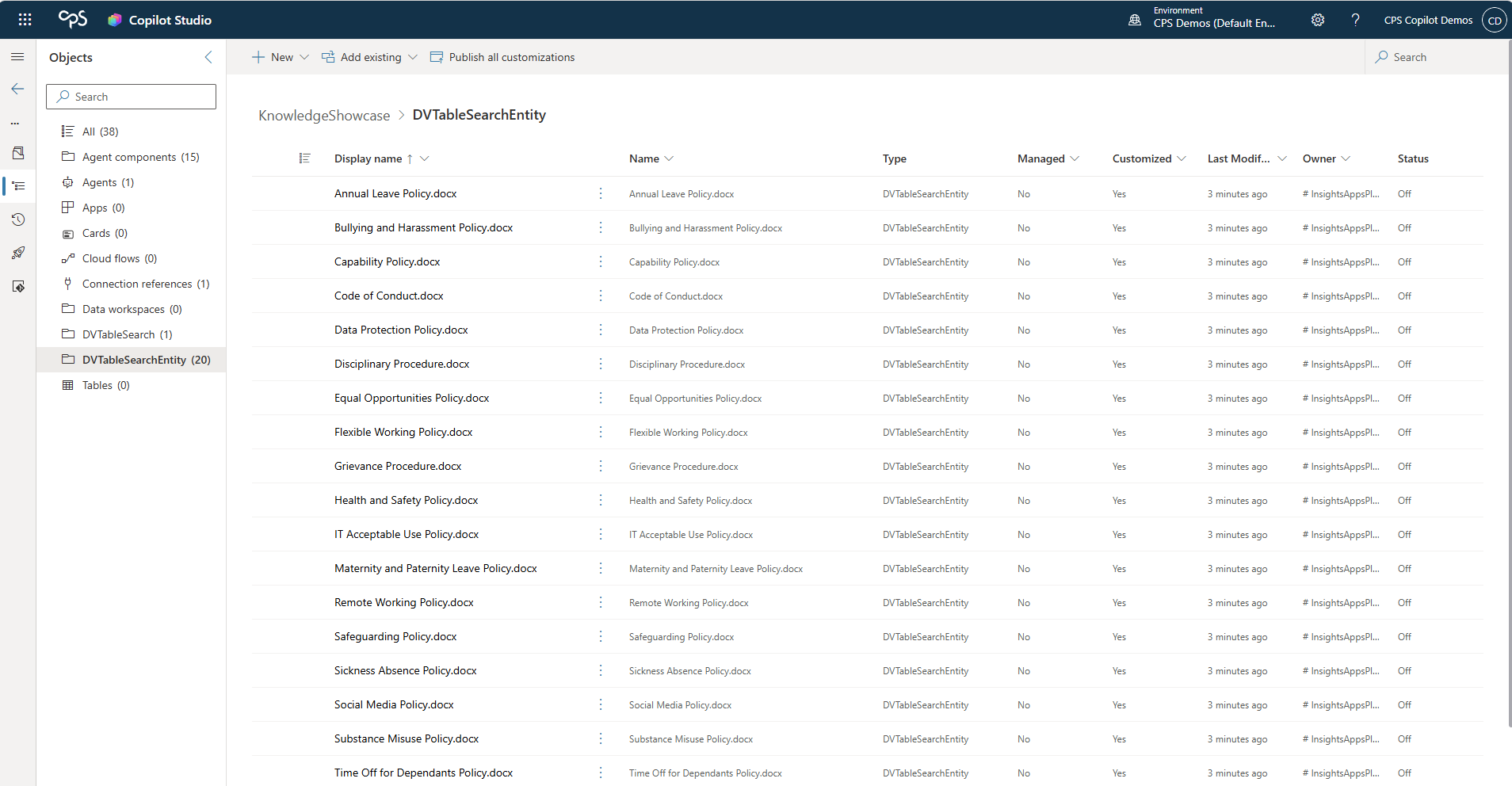
When you import the managed solution into your target environment, those index components arrive with it. The knowledge source has its search infrastructure intact, and the agent can retrieve content immediately - or after the connection reference is wired up to a SharePoint connection in the target environment, which the import process will prompt you for.
A note on the two SharePoint options
It's worth being precise about which SharePoint knowledge method this applies to. Copilot Studio offers two routes:
The connector-based SharePoint option (listed under "Connectors" in the Add Knowledge dialog) uses the SharePoint connector at runtime to search content directly. It doesn't store files in Dataverse, doesn't build vector embeddings, and supports environment variables for the URL - which makes ALM cleaner for that specific method. But the retrieval quality is different, because the content isn't semantically indexed.
The upload-based SharePoint option (listed under "Upload files" in the Add Knowledge dialog) copies files into Dataverse, builds the semantic index and vector embeddings, and provides significantly better retrieval quality. Microsoft's own comparison shows the ingested/synced files produce more accurate, contextually grounded answers. But this is the method where ALM requires the extra step of adding required objects to your solution.
If retrieval quality matters to your use case - and for most enterprise agents grounding on policy documents, guidance notes, or reference material, it does - the upload method is the better choice. You just need to make sure the solution carries its dependencies.
The broader principle
This is a specific instance of a broader ALM pattern in Power Platform: not every dependent component gets added to a solution automatically. Topics, entities, and connector references generally do. But knowledge sources, agent flows, prompts, connected agents, and evaluation test sets don't - they need to be pulled in explicitly.
Building the habit of running Add Required Objects before every export isn't just a knowledge source fix. It's a general solution hygiene step that catches missing dependencies across the board. If you're using Power Platform pipelines or Azure DevOps for deployment, build this into your pre-export checklist as a non-negotiable step.
The goal is always the same: a solution that carries everything it needs to function the moment it lands. For knowledge-grounded agents, that means the semantic index travels with the agent - not just the reference to a SharePoint site.